Power outage notifications
Power outage notifications
Power outages can be frustrating. That's why we offer outage notifications to keep you informed during planned and unplanned outages. We'll let you know what's happening and when your power is expected to be restored.
When you sign up with an electricity retailer, they share the primary account holder's contact details with us. This usually includes a mobile number and email address.
We use these details to send important updates about your electricity supply. This includes planned and unplanned outages, as well as other changes that may affect your service.
Types of notifications
Planned outages are scheduled, temporary power outages that allow our crews to safely conduct maintenance, repairs and upgrades to the electricity network.
Before a planned outage, we'll let you know by SMS and/or email, based on the preferences you've chosen.
If you currently receive both digital and paper notifications, you can switch to digital-only notifications at any time. Simply follow the instructions below or click the preferences link in any SMS or email notification from us.
Unplanned power outages can happen for a number of reasons. Common causes include severe weather such as lightning, strong winds and flooding, vehicle accidents, and animals coming into contact with powerlines.
When an unplanned outage occurs, we'll send you an estimated time for when power is expected to be restored. During longer outages, you may receive more updates, followed by a confirmation once power has been restored.
On weekdays between 7am and 9pm, your notification will also include a personalised link to a live outage map. The map shows the fault location, when a crew is expected to arrive, and the latest estimated restoration time.
If the crew is called to a higher-priority job, the map will be updated automatically. We'll then work to send another crew to restore your power as soon as possible.
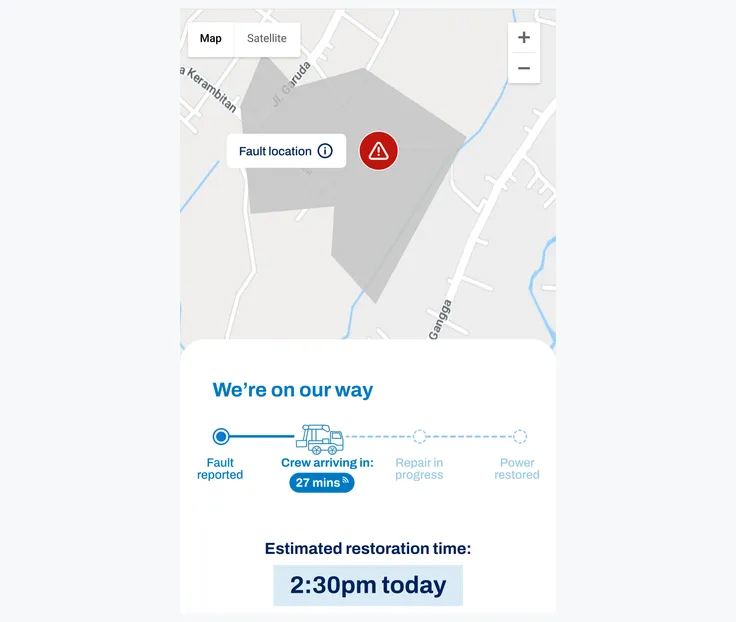
This service is not available during large-scale outages such as those caused by extreme weather events.
We might occasionally send you messages about service updates and changes. If you are ever unsure whether a message is from us, please contact us.
Setting up notifications
You can register for outage notifications for a specific property via myEnergy. If you’re the account holder for a property, you’re automatically eligible for notifications and can manage notification settings for you and others. If you’re not the account holder, you can receive notifications for a property with approval from the account holder.
- Go to myEnergy and click the ‘Register’ button on the right-hand side of the page.
- Fill the required fields and click ‘Create an account’.
- You’ll get an activation email, follow the link to finalise your account set up.
- Go to myEnergy and login
- Go to ‘My properties’
- If the property is not listed (or it is not your property) click ‘Add a property’ and enter the National Meter Identifier (found on your electricity bill).
- Click ‘Confirm NMI’ then follow the prompts.
When someone other than a property’s account holder registers for notifications, we will contact the account holder to gain their approval. They’ll be able to approve or decline the request in myEnergy.
If the account holder has an email address associated with their myEnergy account, they’ll receive this approval request via email, otherwise it will come via SMS and will look something like this:
We have a request from someone wanting to be notified about power outages affecting your property in [property address]. As the energy account holder, this request requires your approval. Login or register for myEnergy via our website to approve. To learn more search our website for notification approval.
We will not put any links in this SMS or ask the account holder to share personal information or account details.
Adjusting notification settings
- Go to myEnergy and login.
- Go to ‘My properties’ and select the relevant property.
- Update your SMS and email preferences. You can also add additional contacts for SMS and email.
- Click ‘Save’.
More information?

myEnergy
Register for outage notifications and see how much electricity you're using.

Help and support
We're here to assist you. We offer a range of dedicated support lines to ensure you can quickly connect with the right team.

Outages
Sometimes we may need to turn your power off to do maintenance and repairs. Extreme weather and other incidents can also cause unplanned power outages.
myEnergy
Register for outage notifications and see how much electricity you're using.
Help and support
We're here to assist you. We offer a range of dedicated support lines to ensure you can quickly connect with the right team.
Outages
Sometimes we may need to turn your power off to do maintenance and repairs. Extreme weather and other incidents can also cause unplanned power outages.